Getting Started with LatticePlan
How to start your free trial, complete the sign-up quiz, and set up your first LatticePlan.
Download the app and start your free trial
You can start your free trial two ways: on our website at web.latticetraining.com/welcome, or via the Lattice Training app. You can download the app from Google Play or the Apple App Store.
You can choose to create a new account, or sign in with your existing one if you've used our app before. From there, the app walks you through a short setup quiz so it can build your plan – see The sign-up quiz below.
You'll be asked for your card details, but no money is taken until your trial ends. Your trial gives you the full LatticePlan to try for 14 days, and you can skip ahead in your plan weeks to see what's coming, though later weeks can shift as your plan adapts to your check-ins.
To see your renewal date, open your Profile, tap Settings, then Manage Subscription.
The sign-up quiz
Before we build your plan, the quiz asks about you and how you want to train. It takes a few minutes.
The quiz asks about:
- your goal, and what you are training for
- the style, angles, holds and length of the climbing you do
- your top grade from the last two years, and the grade you want to reach
- your training experience, date of birth, gender and body metrics
- your equipment and training preferences
- your training focus
- when to start, how long the plan lasts, and the days you train
When you start a new plan after your first one, the quiz is shorter. It asks about your goal again, and you can update your profile and equipment. See Restart, retake or generate a similar plan.
Choosing your goal at setup
Your goal sets the structure of the whole plan. Choose one:
- Train hard to improve long term. Training comes first. You carry some fatigue and build strength and capacity over the block.
- Feel good and climb at my best. Climbing comes first. Training stays lighter so you climb fresh now.
- Get ready for a project, trip or competition in the next 12 weeks. The hard work goes in early, then eases off so you arrive fresh.
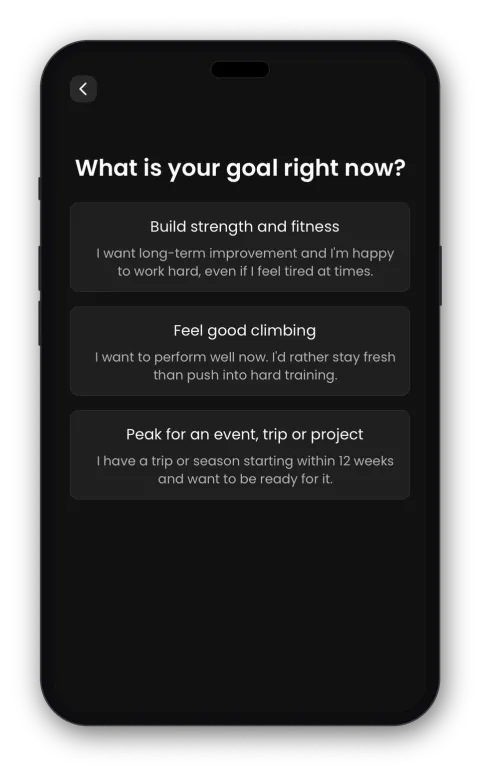
The next page asks for more detail. For example, if you train hard, we ask why: a harder grade, all-round improvement, a project or a competition. If you get ready for something, we ask if it is a project, a competition, a climbing trip or an outdoor season.
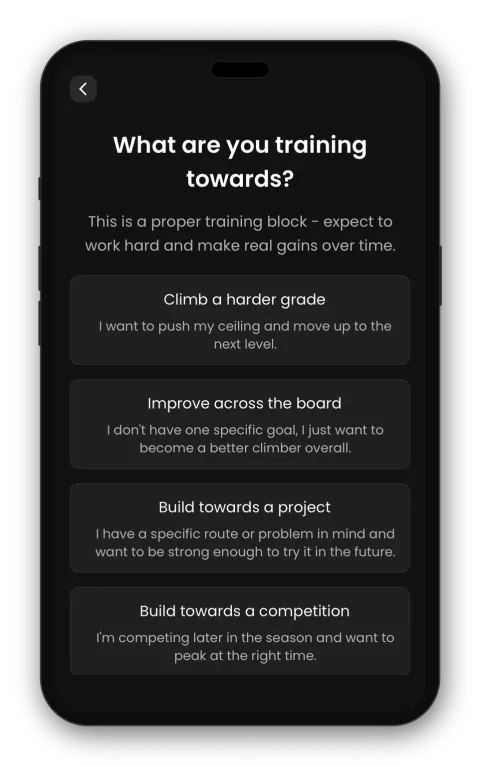
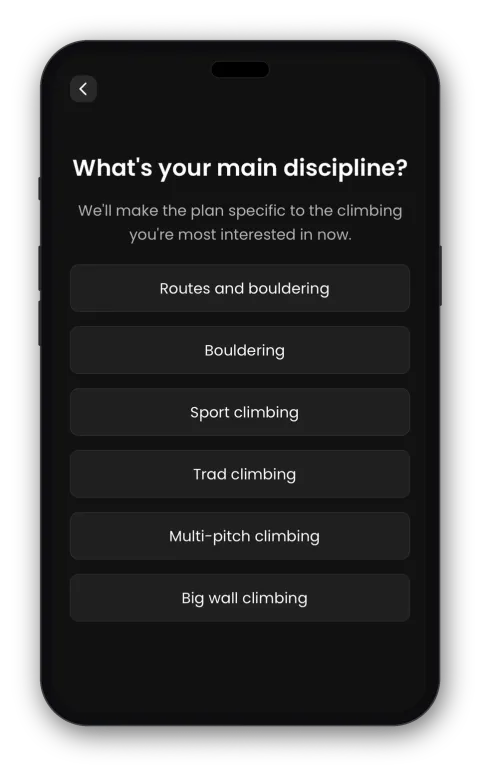
Then we ask about your main discipline or the type of climbing, and the grade you want to reach.
Your goal also sets how long your plan can be:
- Train hard: 4, 6, 8 or 12 weeks, or a custom end date up to 12 weeks away. We recommend 8 weeks.
- Feel good: 4 to 8 weeks. We recommend 6 weeks.
- Get ready: pick the date when you want to feel your best. The plan ends on that date, up to 12 weeks away.
Your climbing: style, angle, holds and length
Next, we ask four questions about your climbing. The words change with your goal:
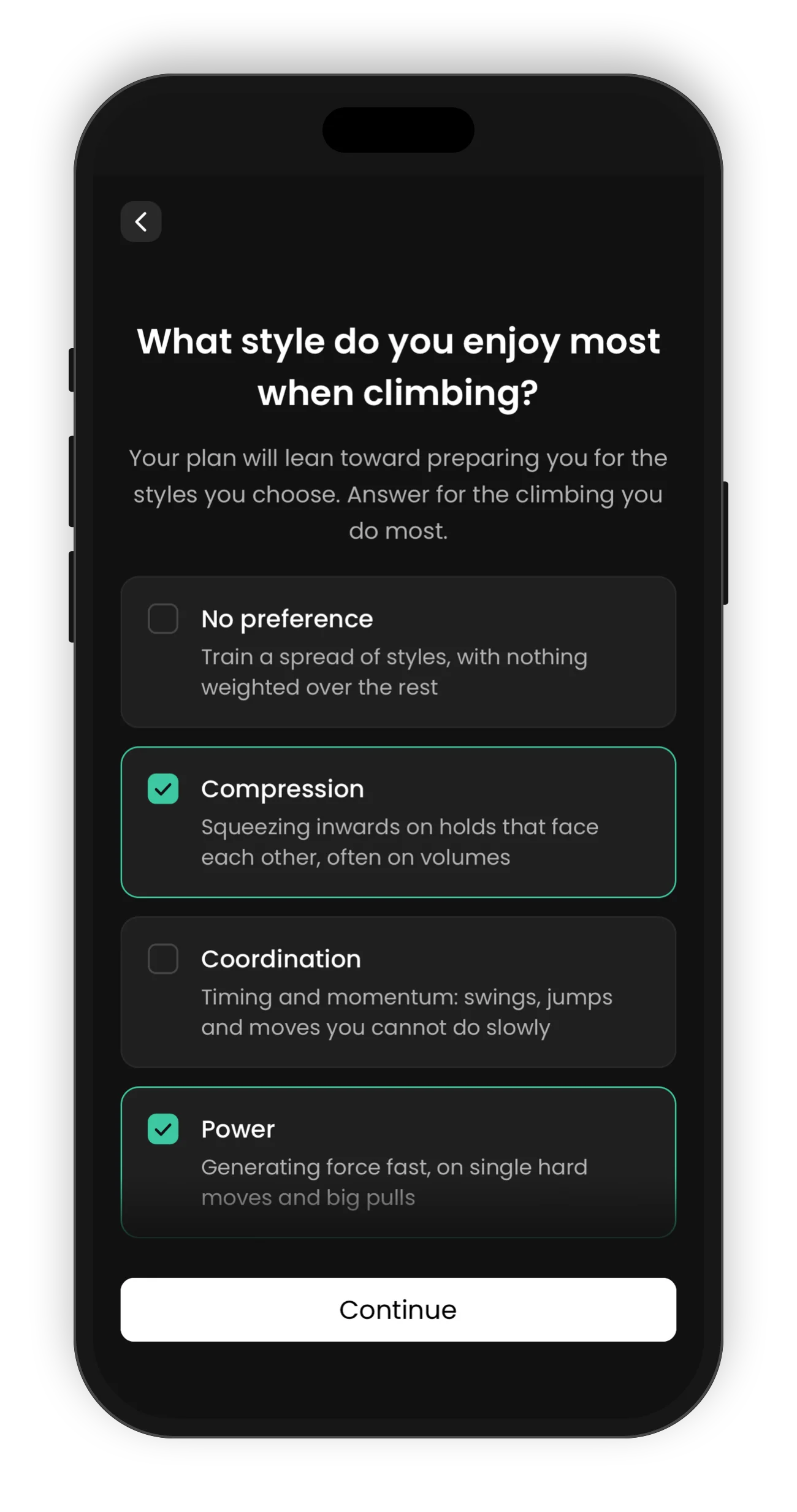
- If you train hard, we ask what you enjoy most. For example: What style do you enjoy most when climbing?
- If you get ready for a project, trip or competition, we ask about it. For example: What is the main style of your project?
- If you choose Feel good, or you get ready for an outdoor season, we ask about the area. For example: What is the main style at the area you want to climb at?
The four questions are:
- Style. Choose one or more: compression, coordination, power, technical or tension. Choose No preference to train a spread of styles.
- Angle. Choose slab, vertical, overhang, steep or roof. Some goals also offer I like all angles or Mixture of angles.
- Holds. Choose one or more: edges, pinches, pockets, slopers or small crimps. Some goals also offer No preference or Large variety of holds.
- Length. Choose how long your boulders or routes are, from 1 to 4 moves up to multi-pitch and big wall. Some goals also offer Any length.
Each answer changes a different part of your plan. Style sets the styles your plan prepares you for. Angle shapes your strength and conditioning work. Holds shape your finger strength work. Length sets your endurance work.
Your training preferences
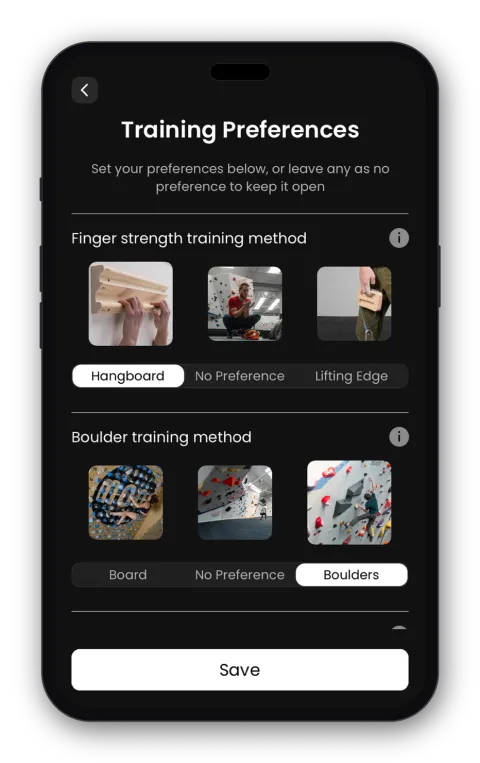
Two climbers can train for the same goal in different ways. Training preferences tell us how you prefer to train. Your plan then uses the methods you like, with the equipment you have.
You set a preference for four types of training:
- Finger strength: hangboard or lifting edge
- Bouldering: board or boulders
- Power endurance: routes or boulders
- Endurance: routes or boulders
Each one has a No preference option. We use your preferences where the plan allows it and where it is safe, so your plan may not always include them.
To change your preferences later, open your Profile and tap Equipment and preferences. The change applies to your next plan, not to your current plan.
What equipment do I need for a LatticePlan?
To build you a full plan we need you to have access to at least a bouldering wall or board, and a fingerboard or pick-up edge. Having additional equipment like barbells, dumbbells, kettlebells, a pull-up bar, resistance bands, TRX/rings, or a weight rack and bench will give you more variety and options in your plan.
If you don't have climbing wall access, you can choose 'home training days' at setup.
You tell us about your equipment during the quiz. For each item, choose where you can use it: Gym, Home or Both. We pre-select common equipment, so for most people this is a quick check. Some items show Required.
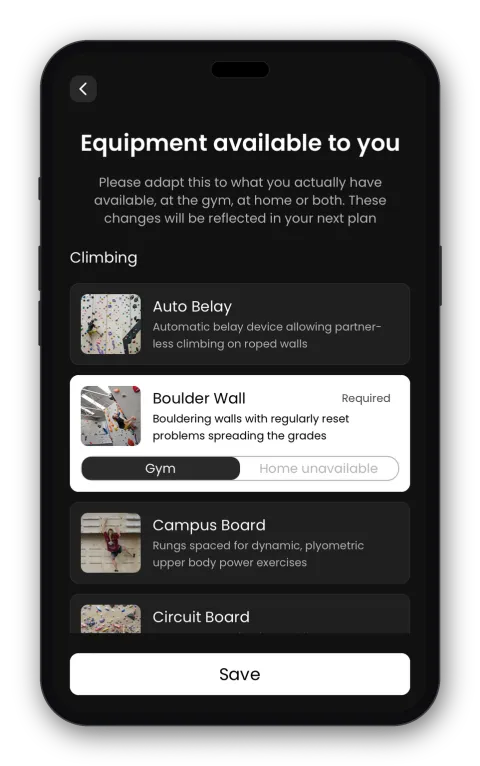
Your plan is built around it. Every session is generated to fit your setup, based on the equipment you have and the session types you've chosen.
"My gym doesn't have something on the list, like an autobelay." Not every piece of equipment has its own toggle. If something isn't listed, it's simply left out of account – it won't stop you generating a plan, and if a workout ever calls for it, you can swap that workout for an alternative.
Changing your equipment. Your plan uses the equipment you had when you generated it. To update your equipment, open your Profile, tap Equipment and preferences, then tap the pencil next to Equipment. The change applies to your next plan. When you start a new plan, the quiz also asks if you want to update your equipment.
"There's a workout I don't have the equipment for." Every so often the plan might include a workout that needs something you haven't got. When it happens, use Switch Workouts to swap it.
Training focus
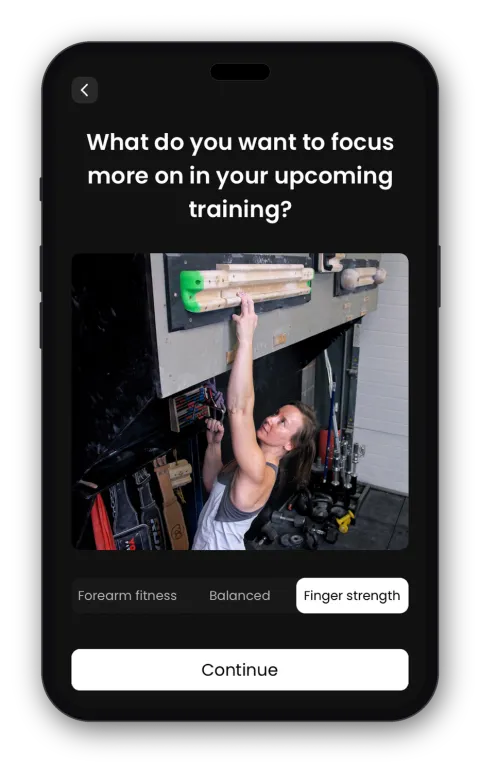
Your training focus sets where most of your training goes. Your plan still trains everything. Choose one:
- Finger strength. Most of your training goes into finger strength and bouldering power. Your endurance still gets some work each week.
- Forearm fitness. Most of your training goes into power endurance: the fitness to keep pulling hard when you start to get pumped. Strength and base fitness stay part of each week.
- Base endurance. Most of your training goes into base endurance: the capacity to climb for longer and recover between efforts. Strength and power endurance stay part of each week.
If your goal is Feel good and climb at my best, the quiz does not show this page.
Ramp weeks
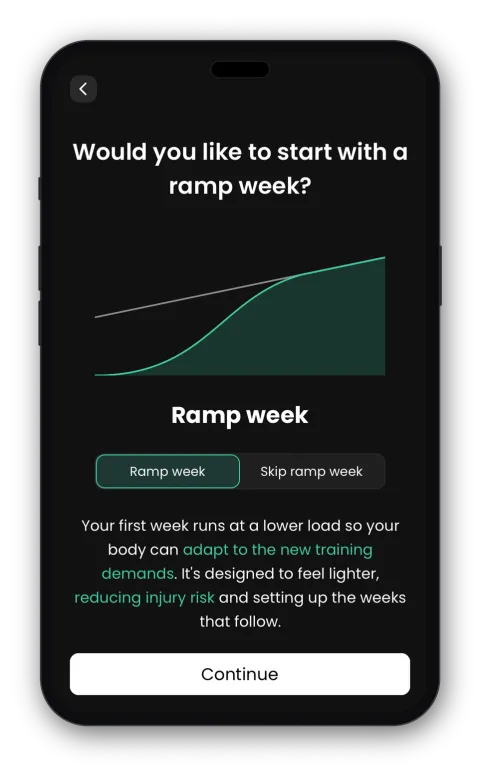
A ramp week is a lighter first 7 days. It lets your body settle into the training load and lowers your injury risk before things step up.
Your first plan always starts with a ramp week. When you start a later plan, the quiz asks Would you like to start with a ramp week? Choose Ramp week or Skip ramp week.
To see if you are in a ramp week, open Home, go to the Plan view and look at the Weekly Breakdown.
Choosing when to start
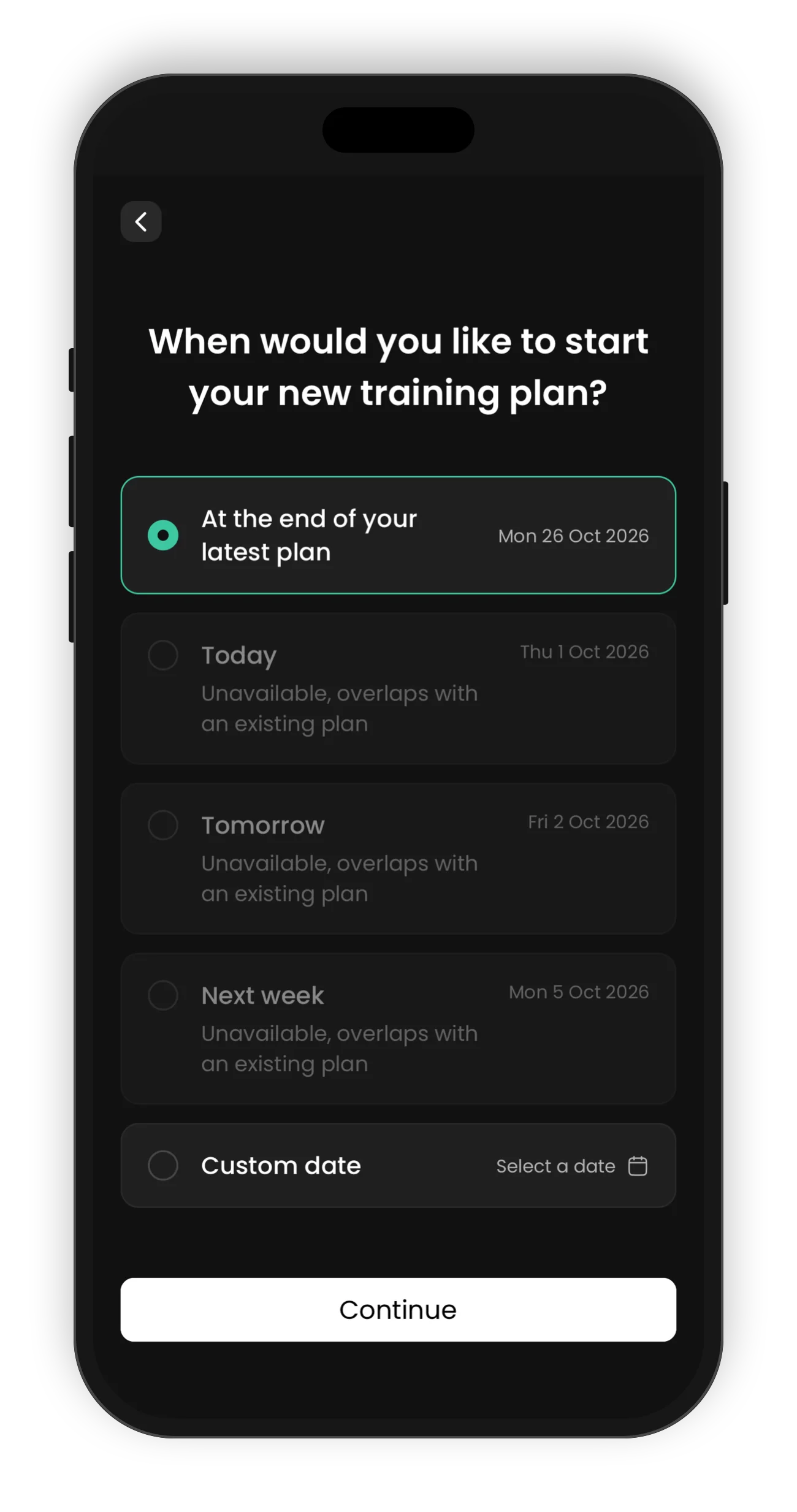
Choose Today, Tomorrow, Next week or Custom date. For a custom date, tap Select a date and pick a day on the calendar.
You cannot start a new plan while another plan is running. The quiz shows those dates as Unavailable, overlaps with an existing plan. To start a new plan now, first end or delete your current plan, then start a new plan. You can do this as many times as you need. See Managing or deleting plans. When you start a later plan, you can also choose At the end of your latest plan.
The plan summary then shows the length of your plan and its start and end dates. If you choose a custom end date, your plan ends on the Sunday before that date.
Choosing how many days to train
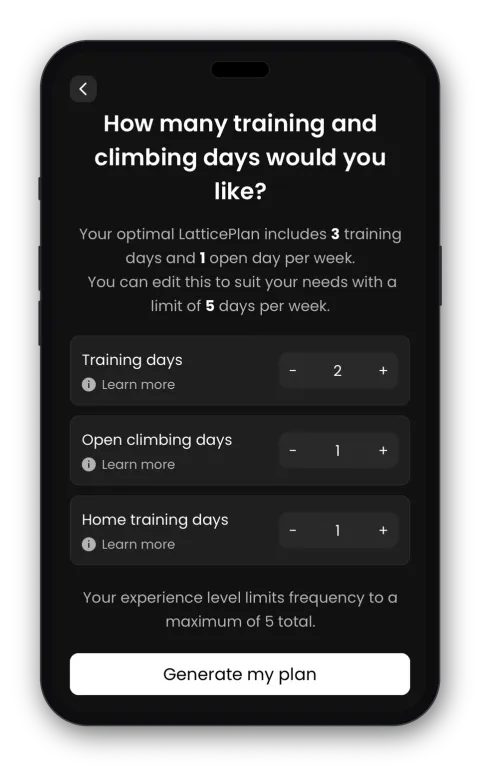
On the last page of the quiz, you choose the days you train. The page shows how many training days and open climbing days we recommend for your goal and experience.
For each day from Monday to Sunday, choose one type, or leave the day empty:
- Gym: a training day at a climbing wall.
- Home: a training day at home. Home days have no climbing workouts.
- Open: a day for your own climbing, outside the plan.
Some limits apply:
- Beginners can train up to 4 days a week. Other climbers can train up to 5. On a Feel good plan, the limits are 3 and 4.
- You cannot have more than 3 days in a row, training days and open days together.
- A Feel good plan needs at least 1 open day.
If a choice breaks a limit, the app tells you why, above the button. When you are ready, tap Generate my plan.
If you have a board at home, the app has no home option for it. Mark those days as Gym instead.
Managing your account, subscription and refunds
To manage your subscription, go to Account & billing:
- Managing or cancelling your subscription – see Subscriptions.
- Getting a refund – see Payments and refunds.
- Founder Member discount and free app access – see Discounts and access.