Using your plan
Reading your plan views, scheduling and swapping workouts, logging, check-ins, and managing your plans.
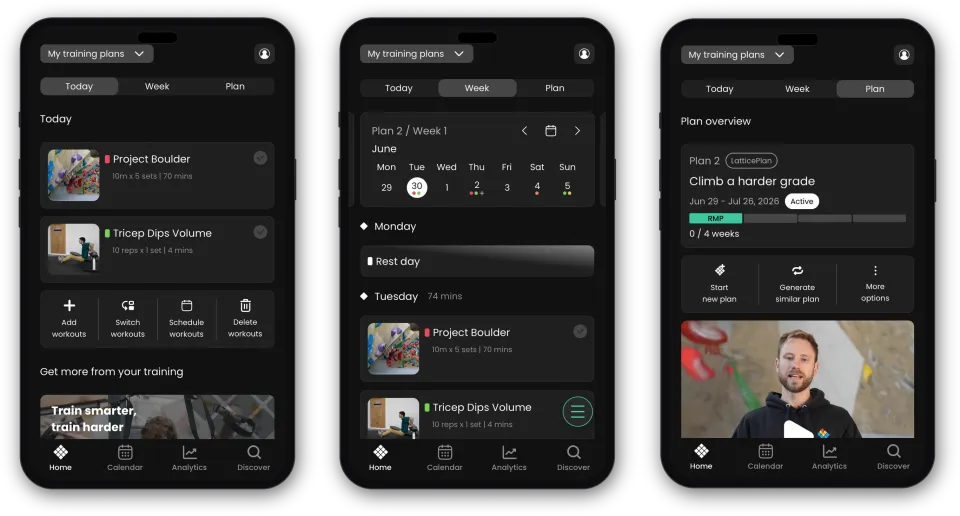
Reading the today, week and plan views
The app has five tabs at the bottom of the screen: Home, Calendar, Testing, Analytics and Search.
Your plan is on Home. At the top of Home there are three views:
- Today: what to do today, with the total minutes of your workouts.
- Week: your workouts for this week.
- Plan: an overview of all the weeks in your plan.
Tap a workout to see its exercises, sets and guidance. Under your workouts on Today, there are buttons to add, switch, schedule or delete workouts.
Further down, Today shows your weekly check-in, education articles, and the newest posts from our blog and YouTube channel.
Home opens on Today. To open Week instead, go to your Profile, tap Settings, then Default home tab.
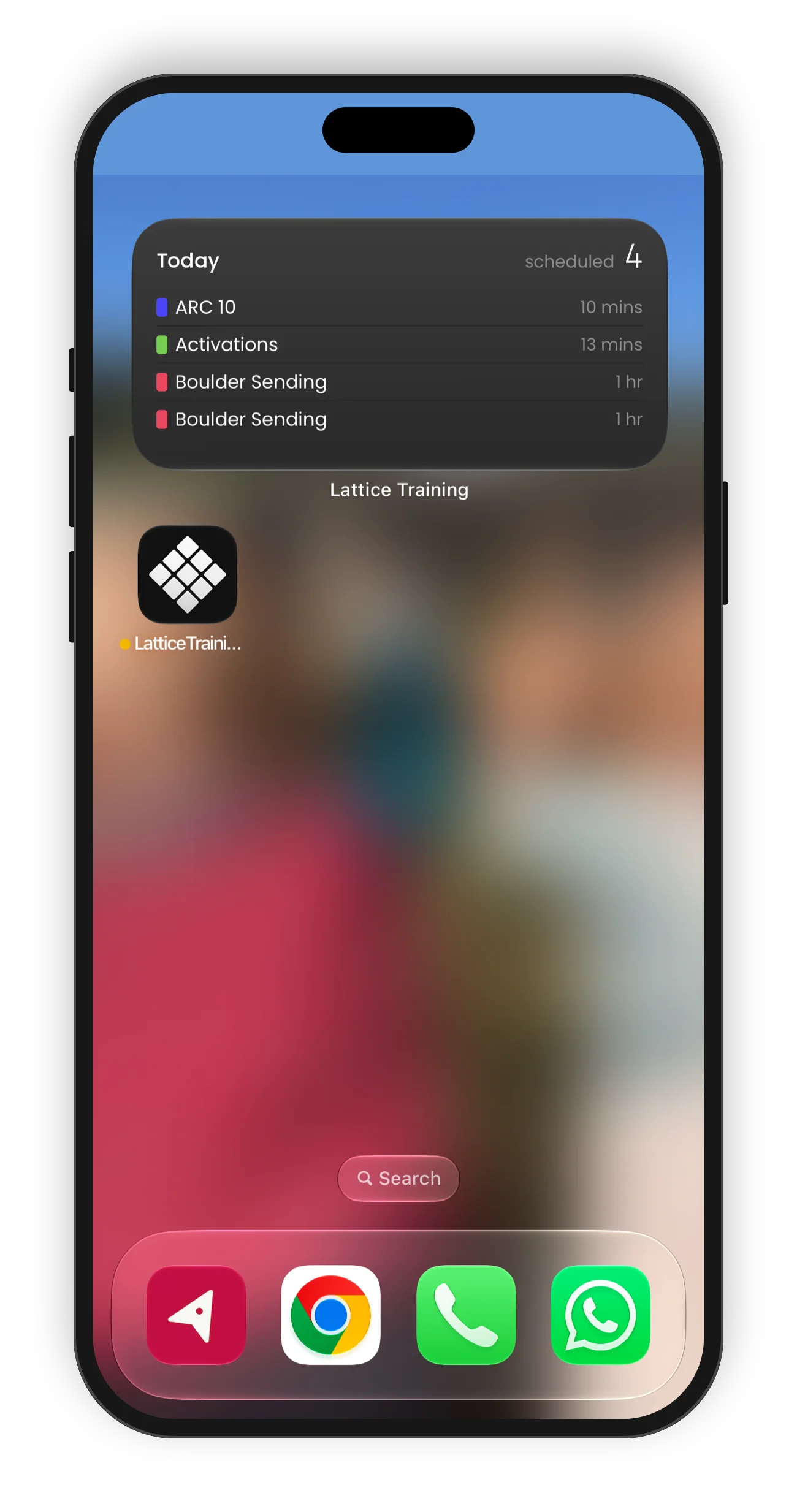
See today's workouts on your Home Screen (iPhone)
The Today's Workouts widget shows the workouts on your schedule for today. On a rest day, it shows what is next.
To add the widget:
- Touch and hold an empty area of your Home Screen.
- Tap Edit, then Add Widget.
- Search for Lattice and choose Today's Workouts.
- Choose the small or medium size, then tap Add Widget.
If the widget shows Open the app to sync today's schedule, open the app one time.
Scheduling your workouts onto days
Your plan gives you a set of workouts for the week. It'll recommend a way to group them, along with some ideal rest periods between sessions. If that grouping and days do not fit your schedule, or something comes up last minute, the equipment you need isn't free, or you're just feeling tired, you can reschedule your week, so your training fits your life rather than the other way round.
To schedule your week:
- On Today, tap Schedule workouts. Or on Week, tap the menu button at the bottom right and choose Schedule my week.
- For each workout, choose the day (Mon to Sun).
- To change the order on one day, use the up and down arrows.
- Tap Save at the top right.
To use last week's days again, open Week and tap Copy last week under the week overview. To clear all the days for this week, tap Unschedule all. These two buttons are for subscribers only.
Swapping a workout
Not feeling a particular workout, or can't do it with the equipment you've got? You can swap most workouts for an alternative of similar intent, straight from the week screen.
- On Today, tap Switch workouts. Or on Week, tap the menu button and choose Switch workouts.
- Tap the workout you want to change.
- Choose an alternative from the list. The alternatives have the same training purpose, so your plan stays balanced.
- Under Make this change for:, choose This week or Rest of plan.
- Tap Select.
You can only switch a workout that you have not logged. Coached plans do not have this option.
Adding and removing sets from the timer
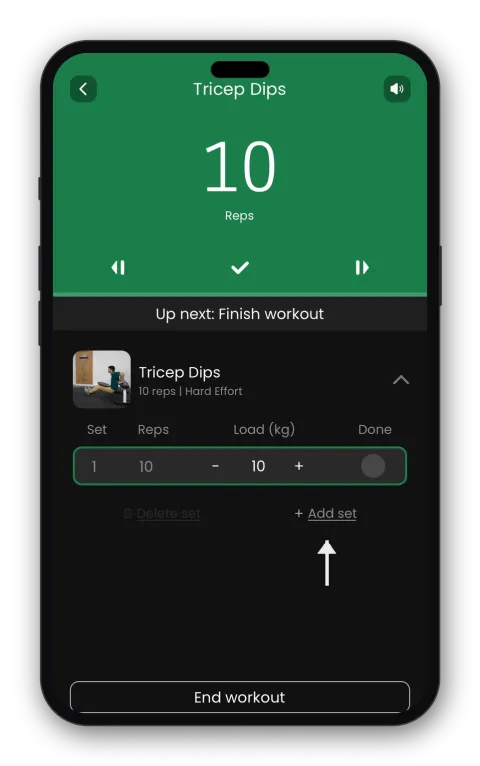
You can add sets on the timer screen during a workout. Under the current exercise, tap Add set. For climbing exercises, tap Add climb. To remove a set you added, tap Delete set or Delete climb.
You cannot remove sets below the number in the plan. If you do fewer sets than the plan, leave the extra sets unticked when you log the workout.
Sets you add go into your workout log and your exercise history.
Logging your workouts
Logging keeps a record of what you've done, and it feeds the analytics that show your progress over time.
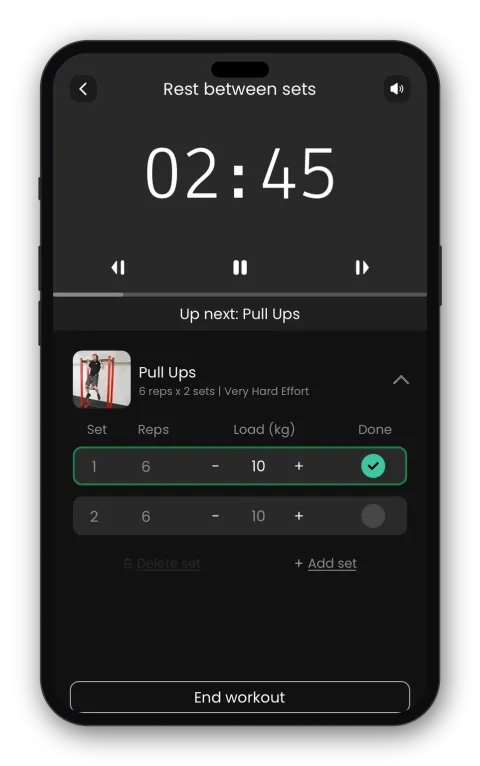
You can log as you go, set by set, on the timer. To mark a set as done, tap the circle on the set row. For one-arm exercises, each tap moves through left, right and both. If you tick or untick a set yourself, the timer does not change it.
If you did not finish a set, leave it unticked. Do not delete it. Your weekly analytics then show correctly that you did not complete the workout.
Worth knowing: two things shape your upcoming week – the effort rating you give each workout when you log it, and your weekly check-in. See How your plan adapts.
Adding notes to a workout
Want to jot something down about a session – how it felt, what you'd tweak next time? You can add notes to any workout when you log it.
When you finish on the timer, tap End workout, then Log Workout. On each exercise, write in the Add notes box. On the last exercise, tap Log. To share the workout too, tap Log & Share.
To read your notes later, tap the green tick on the logged workout and choose Edit Workout Log.
Tracking your progress
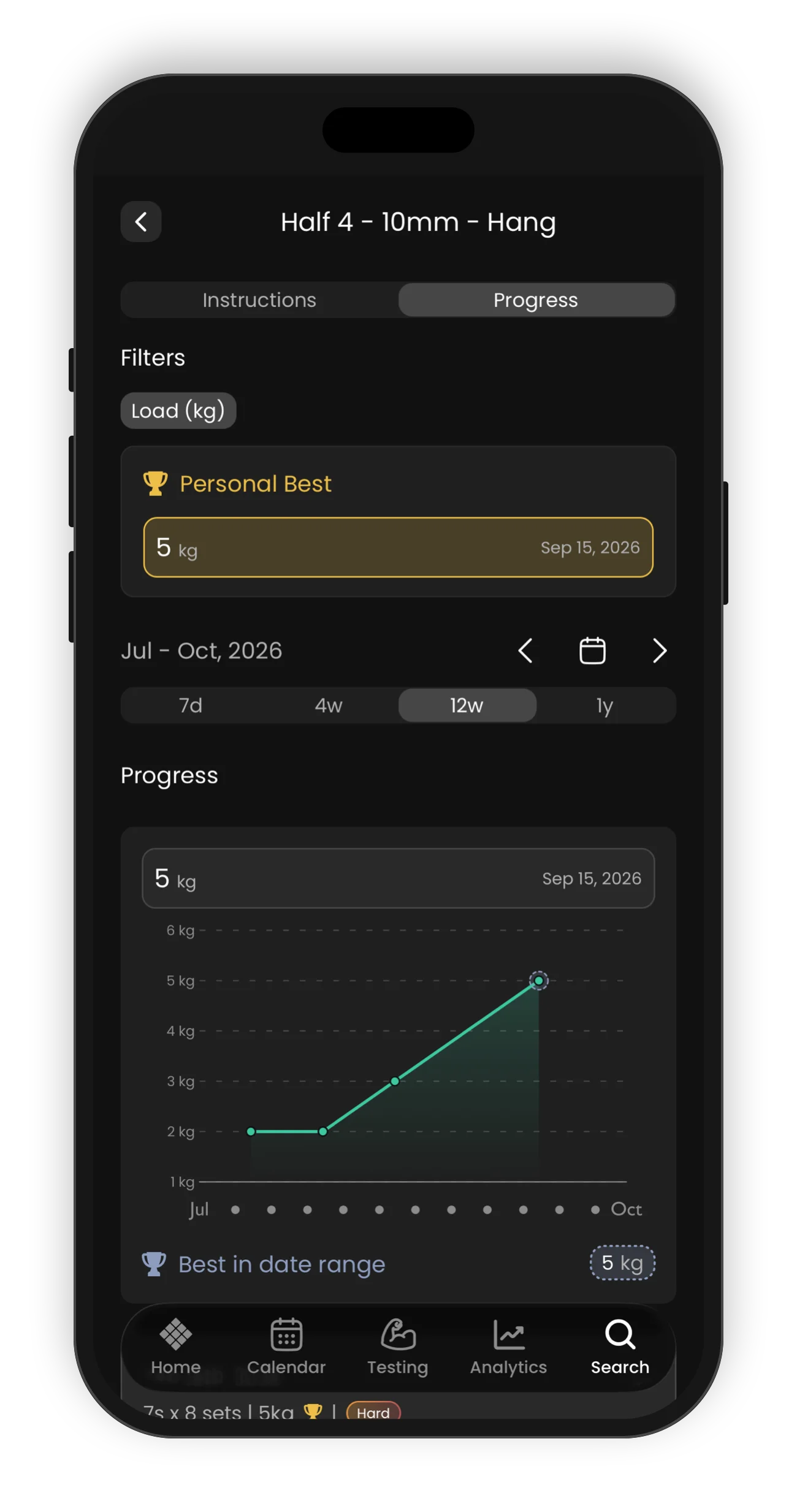
Exercise progress. Open an exercise and tap Progress to see a graph of your results. Tap Filters to show your left or right hand, load or % body weight, or to compare with your current max or target grade. For climbing exercises, the graph shows grades.
You can also open this from a logged workout. Tap the green tick, then tap View Exercise Progress.
Grades and body weight. Open your Profile and tap Bouldering, Route Climbing or Weight. Each one shows a graph of your history. To add a new value, change it and tap Update.
Diary entries and notes to yourself
Diary entries are notes you leave for a day in the future, so a reminder or a bit of a plan for yourself shows up when you need it.
- On Week, tap the menu button at the bottom right and choose Add diary entry. Or on Calendar, tap the menu button and choose Add diary entry.
- Tap the date, pick a day, then tap Done.
- Write your note and tap Save.
Your entry shows on that day in Today and Week. To see only your entries on Calendar, tap the menu button, choose Filter workouts, then choose Diary entries.
Logging other activities
You can add workouts that are not part of your plan, so your records are complete. Your plan does not adapt to these extra workouts.
Add a workout to your week.
- On Today, tap Add workouts, tap + next to each workout, then tap Add.
- Or find a workout on Search, tap it, then tap Add to training weeks. Choose how many times for This Week and Next Week, then tap Done.
Workouts you add show an Added label in Today and Week.
Log a workout you already did. On Calendar, tap the menu button and choose Log a workout. Pick the workout and log it. The app adds it to that day in your training week. You can move or delete it like your other workouts.
The weekly check-in, deload and rest weeks
At the end of each training week, or when you've completed all your workouts, you'll be prompted to complete a short weekly check-in. It's the most important thing you do for keeping your plan matched to you, because it's what sets up and adjusts your next week.
On Today, tap Start weekly check in. The check-in asks:
- how you found the training load last week
- about any highs or lows, and events that affected your week
- how you feel physically now
- how motivated you are for the week ahead
- if you are ready for a full week of training: Train as normal, Deload Week, Rest Week or Injury Management
- how to set up next week, for example to copy your daily schedule
Your training load, how you feel and your motivation shape your next week. Your next week can progress, stay the same or ease off. The highs, lows and events are for your own record. They do not change your plan.
A plan week runs Monday to Sunday. The check-in opens on Sunday, or earlier if you complete all your workouts for the week. There is no check-in in your first week, because there is nothing to adapt from yet.
If you miss the check-in, it closes when the week ends. The app shows Check-in window closed. You can then do the check-in for the current week.
If a new week does not appear, do your check-in. If your plan has finished, start a new plan.
Want the full picture of how this drives your plan? See How your plan adapts.
Managing or deleting plans
You can only start a new LatticePlan on dates when no other plan is running. The quiz shows overlapping dates as Unavailable, overlaps with an existing plan.
To end or delete a plan, open Home, go to the Plan view and tap More options:
- End my training plan early: choose End of last week, End of this week or Custom end date, then tap End Plan. Your training history stays.
- Delete my training plan: tap Confirm deletion. The plan is deleted, but your workout log and history stay.
More options also has Change start date. You can use it until you log your first workout.
If you're stuck with an old or empty plan you can't clear, get in touch and we'll sort it.
Restart, retake or generate a similar plan
Finished a plan, or want to go again? Open Home, go to the Plan view and choose:
- Start new plan: do the quiz again, so your plan matches where you are now.
- Generate similar plan: use the answers from your selected plan again.
If the new plan overlaps your current plan, your current plan ends on the Sunday before the new plan starts.
You can only do this with LatticePlans, not with Climbing Training Plans.
Changing units (kg / lbs)
Open your Profile, tap Settings, then Units. Choose kg or lb for weight, and cm or in for length. Tap Save. Your plan and logs then show in your units.