Using the timer
Controlling the timer from your Lock Screen, resuming a workout, timer settings and building your own timer.
The timer guides you through each set and rest, and you can log as you go. This page covers the timer features outside the workout itself.
Control the timer from your Lock Screen
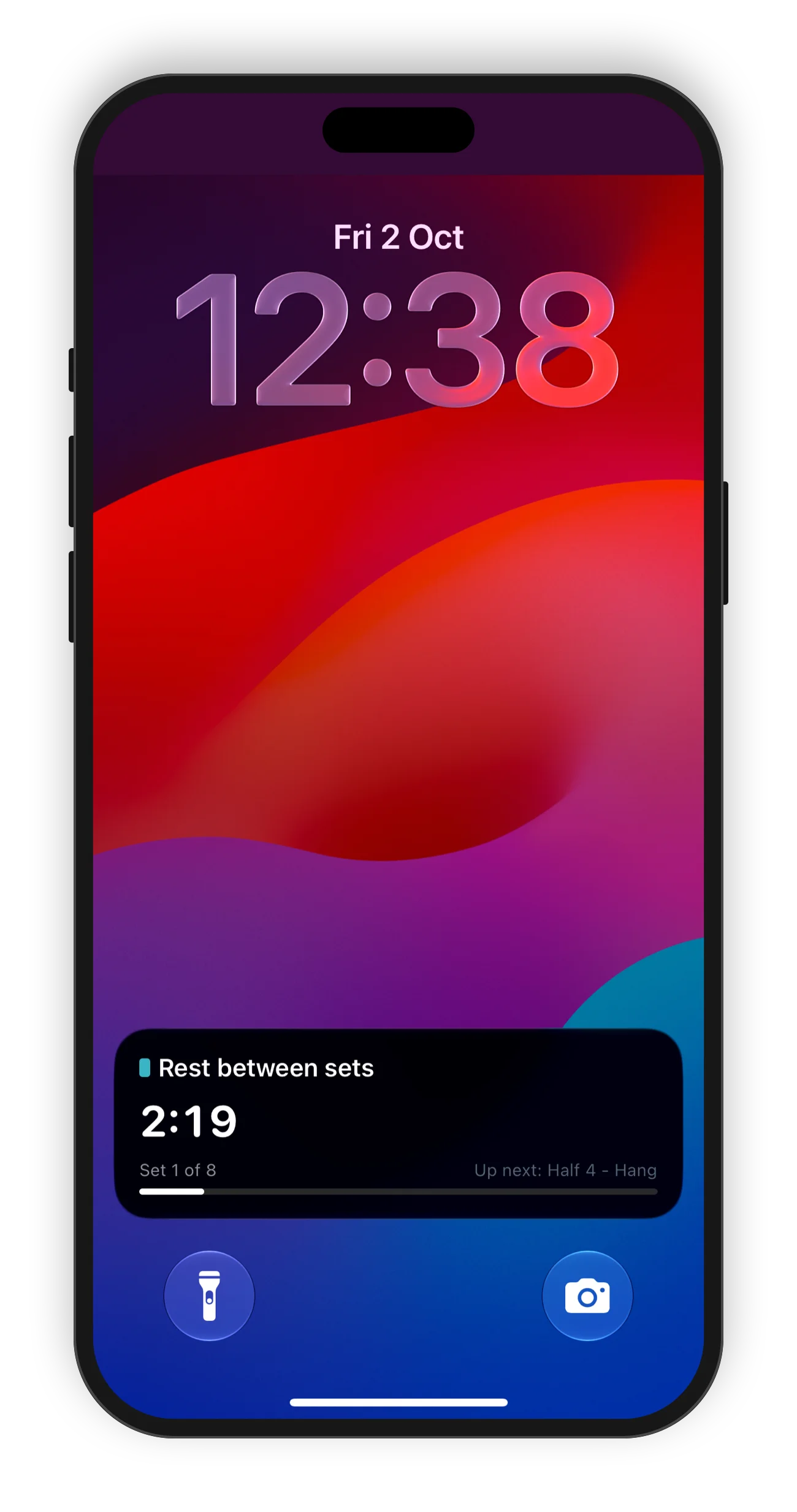
iPhone. While the timer runs, it shows on your Lock Screen and in the Dynamic Island. You see the exercise, the countdown and the set you are on. On iOS 17 or later, you can pause and skip to the next set, or skip your rest, without opening the app.
Android. The timer shows as a notification with the set and rep you are on, and a progress bar. Use Pause, Resume and Skip in the notification. On Android 16, a live chip in the status bar also shows the timer.
If your Lock Screen shows Open Lattice to resume, open the app to continue.
If the app closes during a workout
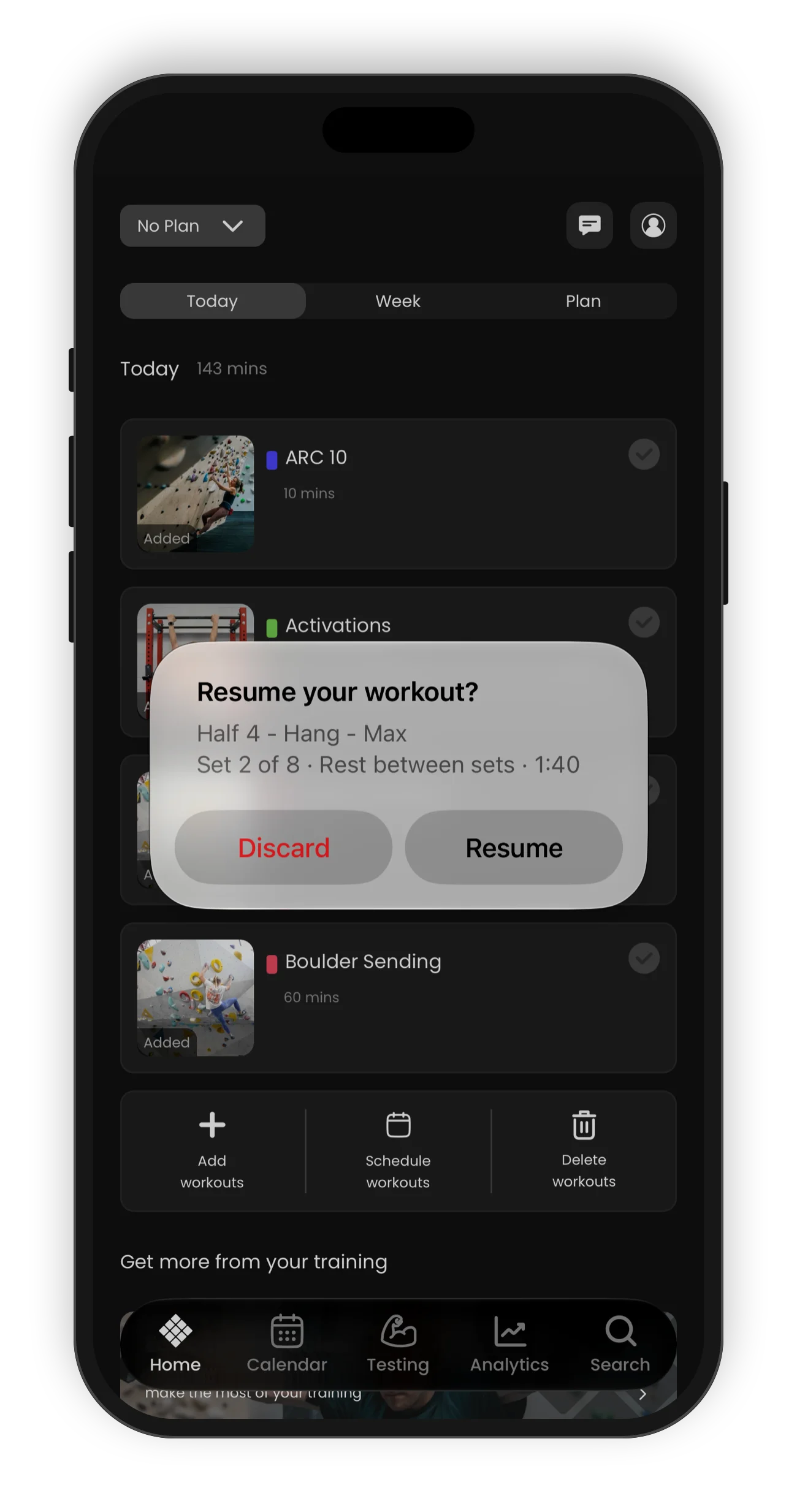
The app saves your workout as you go. If the app closes, it asks Resume your workout? the next time you open it. It shows where you stopped, for example Set 3 of 5.
- Tap Resume to continue. The timer stays paused until you start it.
- Tap Discard to delete the saved workout.
The app keeps a saved workout for 3 hours.
Repeaters and tests to failure
For a repeater, the timer moves between work and rest, and shows your Total time.
For a test to failure, the set continues past the target reps until you stop. Tap Finished when you stop. The timer records your time for that set.
Climbing exercises
On a climbing exercise, tap Start attempt when you start a climb. Tap Start rest when you finish it. The timer records the time of each climb and each rest.
When you log the workout, each climb shows its Grade, Time and Rest. Under the climbs, the app shows your time Climbing, Resting and the Total time.
Adjust the timer before you start
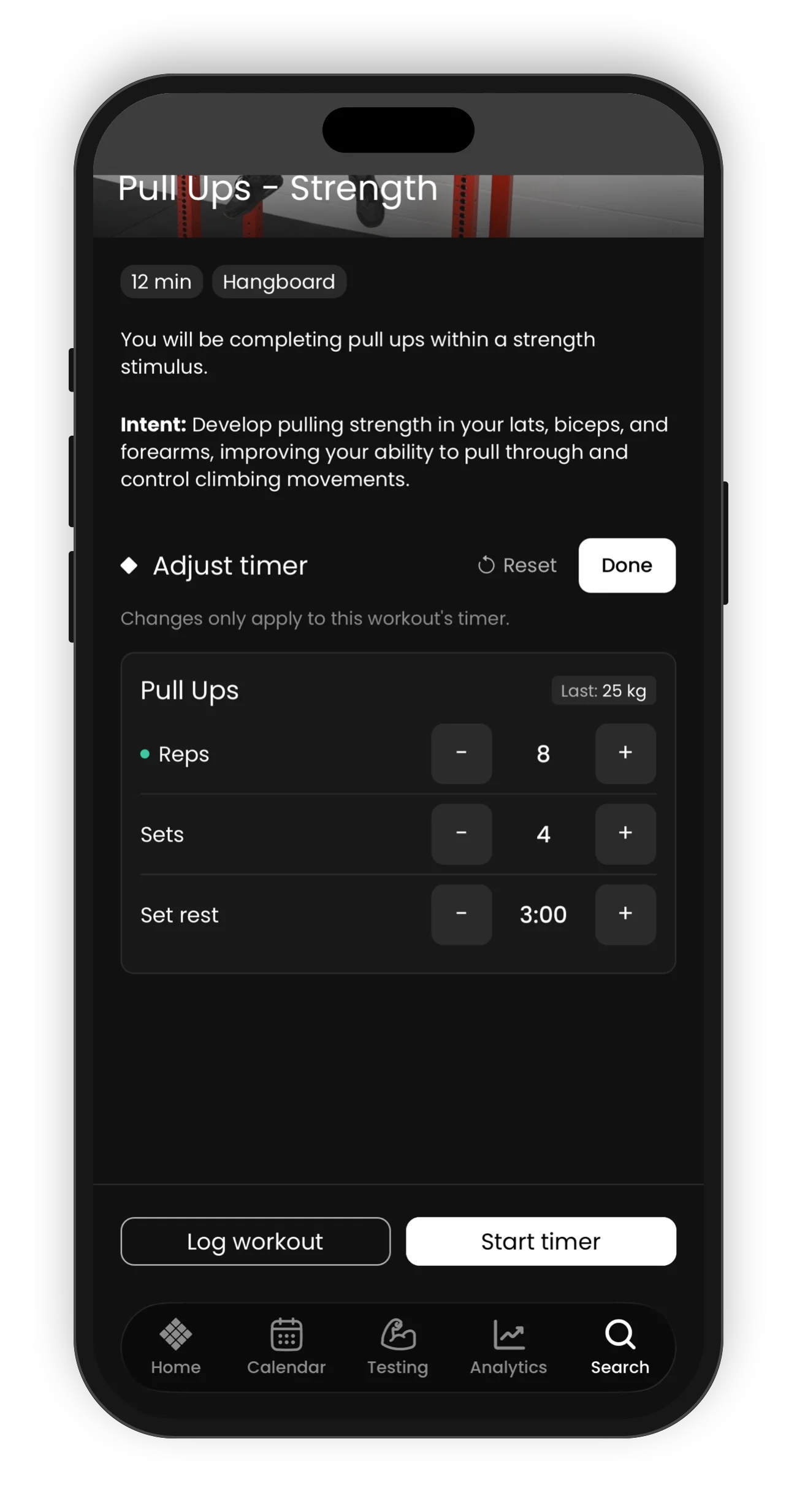
You can change the timer for a workout before you start it. The changes are for this workout only. They do not change your plan.
- Open the workout.
- Next to Exercises, tap Adjust.
- On each exercise, tap - or + to change a value.
- Tap Done.
You can change Hold, Reps, Rep rest, Side rest, Sets and Set rest. Each exercise shows only the values that apply to it. In a superset, the last value is Rest after. Between exercises, you can change the Rest. If you set fewer sets than the plan, the app skips the other sets.
After a change, the button shows Adjusted. To go back to the plan, tap Adjusted, then Reset, then Reset changes. Your log records the workout as you did it.
You cannot change the load here. Climbing exercises and tests do not have this option.
Timer settings and sound
Open your Profile, tap Settings, then Timer. You can change:
- Count-in time: the countdown before the first set (5, 10, 15 or 30 seconds).
- Reminder beep: a beep during long rests, before the next set (Off, 15, 30 or 60 seconds). It only plays on rests longer than the time you choose.
- Countdown beeps: when the beeps start before each rep (3 or 5 seconds).
- Unilateral starting side: the side that one-arm and one-leg exercises start on, Left or Right.
- Sound volume: the volume for the timer and for exercise videos. Tap the speaker button next to the slider to mute or unmute.
Exercise videos start with the sound off. Tap the volume icon on the video to turn the sound on. Tap it again to open Volume. There you can change the volume or tap the mute button. You can also touch and hold the icon to mute.
Build your own timer
Open your Profile, tap Settings, then Custom Timer. Set:
- a name
- Reps or Time, then the reps for each set or the hold time
- the number of sets
- the rest between sets
Tap Start. The app keeps your last settings for next time.